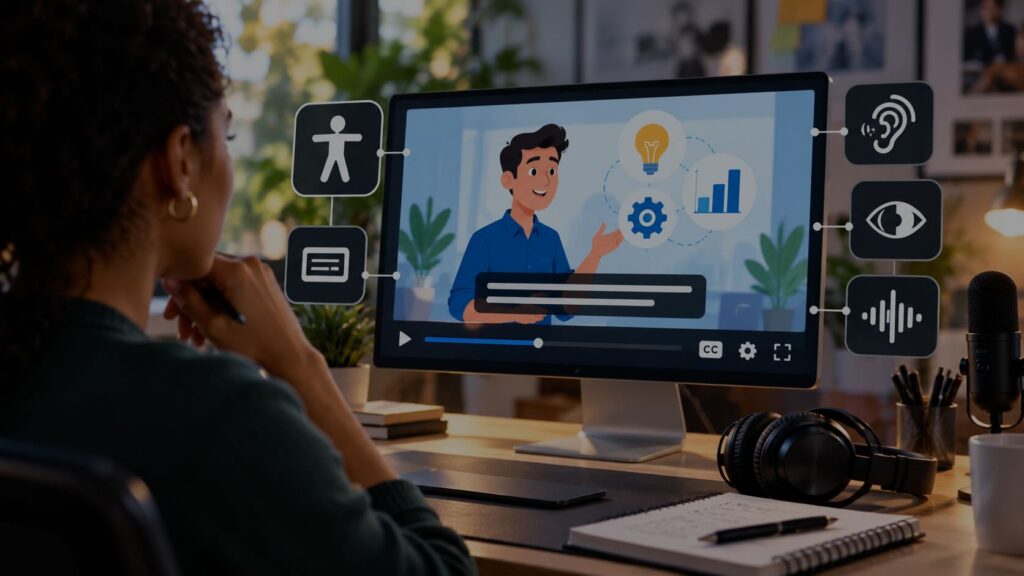

Quick answer: An accessible explainer video has accurate captions, a way for blind and low-vision viewers to get the visual information (audio description or a descriptive transcript), readable on-screen text with strong contrast, and no rapid flashing. These basics come from WCAG, the standard most accessibility laws and policies point to.
Introduction
Explainer videos are supposed to make things easier to understand. But a video that relies only on sound excludes people who are deaf or hard of hearing. A video that relies only on visuals excludes people who are blind or have low vision. And accessibility isn’t only about disability: captions also help people watching on mute, in noisy places or in a second language.
Here’s what marketing teams need to know, in plain English. This is a practical guide, not legal advice. If you work in a regulated industry or have specific compliance obligations, check with your legal or accessibility team.
What is WCAG?
WCAG stands for the Web Content Accessibility Guidelines, published by the W3C, the organization that sets web standards. It defines success criteria at three levels: A (minimum), AA (the level most organizations and policies target) and AAA (the highest).
Many accessibility laws and procurement rules refer to WCAG, often at the AA level. In Europe, the European Accessibility Act has applied to many consumer-facing digital products and services since June 2025. In the US, organizations commonly use WCAG as the benchmark for ADA compliance on the web.
What does WCAG require for video?
These are the criteria that matter most for prerecorded explainer videos (full details are in the WCAG quick reference):
| Requirement | WCAG criterion | Level | What it means in practice |
|---|---|---|---|
| Captions | 1.2.2 Captions (Prerecorded) | A | Accurate captions for all speech and important sounds |
| Audio description or media alternative | 1.2.3 | A | A way to access visual information, such as audio description or a full text alternative |
| Audio description | 1.2.5 Audio Description (Prerecorded) | AA | Narration of important visual information that isn’t already spoken |
| Audio control | 1.4.2 Audio Control | A | Audio that autoplays for more than 3 seconds can be paused or muted |
| Pause, stop, hide | 2.2.2 | A | Moving content that starts automatically and lasts more than 5 seconds can be paused |
| Flashing | 2.3.1 Three Flashes or Below Threshold | A | Nothing flashes more than three times per second |
| Text contrast | 1.4.3 Contrast (Minimum) | AA | On-screen text has enough contrast with its background |
Some of these depend on the video itself. Others, like pause and audio controls, depend on the player and how the video is embedded on your site.
How do you make good captions?
Captions are the single most important accessibility feature for video. Good captions:
- Are accurate. Auto-generated captions are a starting point, not a finished product. They often get brand names and technical terms wrong.
- Include meaningful sounds. “[alarm beeping]” or “[upbeat music]” when the sound matters to the message.
- Are synced. Captions should appear with the words they represent.
- Are closed captions, where possible. Closed captions (a separate caption file like SRT or VTT) can be turned on and off and are readable by assistive technology. Open captions are burned into the video, which is useful on social platforms that don’t support caption files.
What is audio description, and does an explainer video need it?
Audio description is narration that describes important visual information for people who can’t see it. In a movie, that’s actions and scenery. In an explainer video, it’s things like on-screen text, charts and key visuals that the voiceover doesn’t mention.
Here’s the good news for explainer videos: a well-written script can remove most of the need for separate audio description. If the voiceover already says what’s on screen (“Your dashboard shows three alerts”), blind viewers get the information. Problems arise when the video says “Just click here” while the visual shows where “here” is, or when key statistics only appear as on-screen text.
Write your script so the narration carries the essential information, and audio description becomes a small job or no job at all.
How do you design accessible visuals?
- Use strong contrast. Light text on a light background is hard for everyone to read.
- Keep text on screen long enough. Viewers need time to read it, especially with captions also on screen.
- Leave space for captions. Keep important text and graphics out of the bottom of the frame where captions appear.
- Don’t rely on color alone. If red means “problem” and green means “fixed,” add icons or labels too.
- Avoid rapid flashing. Fast strobing effects can trigger seizures in people with photosensitive epilepsy.
- Use readable fonts. Clean typefaces at a comfortable size work best, especially on mobile.
Should you provide a transcript?
Yes. A text transcript helps people who use screen readers, people who prefer reading and anyone searching for information. A descriptive transcript, which includes both the spoken words and descriptions of important visuals, can serve as a text alternative for the whole video. It also gives search engines and AI tools readable text about your video.
The bottom line
Accessible explainer videos reach more people, meet the expectations of accessibility laws and policies, and often perform better, because captions and clear scripts help everyone. The most cost-effective approach is to plan for accessibility from the script stage, not add it at the end.
At Gisteo, we’ve produced explainer videos since 2011. Schedule a free consultation, talk to us about your next video, and we’ll build captions, contrast and description-friendly scripting in from the start.
FAQs
Do explainer videos need captions?
Under WCAG, prerecorded video with audio needs captions at Level A, the minimum level. Captions also help viewers watching without sound.
Are YouTube’s automatic captions enough?
Usually not on their own. Auto-captions often contain errors, especially with brand names and technical terms. Review and correct them before publishing.
What’s the difference between closed and open captions?
Closed captions are a separate file that viewers can turn on and off. Open captions are burned into the video and always visible.
What is audio description?
Audio description is narration that describes important visual information for people who are blind or have low vision. A well-written explainer script can reduce or remove the need for it.
Which WCAG level should my videos meet?
Most organizations target WCAG AA, which is also the level most often referenced in accessibility policies and regulations. Check your specific legal or contractual requirements.